What is a pipeline
Pipelines in Financial Consolidation and Close (FCCS) are used to orchestrate a series of jobs using a single process. Pipelines can be built through the data exchange interface where the various stages and jobs appear as a row of boxes and are configured one at a time. Each stage holds one or more jobs, and each job carries its own set of parameters, so a pipeline that runs a month end close can hold several dozen settings spread across a handful of screens.
All this looks fine while you’re building it for the first time, but reading the whole definition at once is a different problem, and the interface gives you no way to do it.
How to get the pipeline details
Oracle provides a REST API call that returns the entire pipeline definition in a single response. The call is a GET, and the only thing you supply is the pipeline code.
GET <pod-url>/aif/rest/V1/pipeline?pipelineName=<pipelineCode>
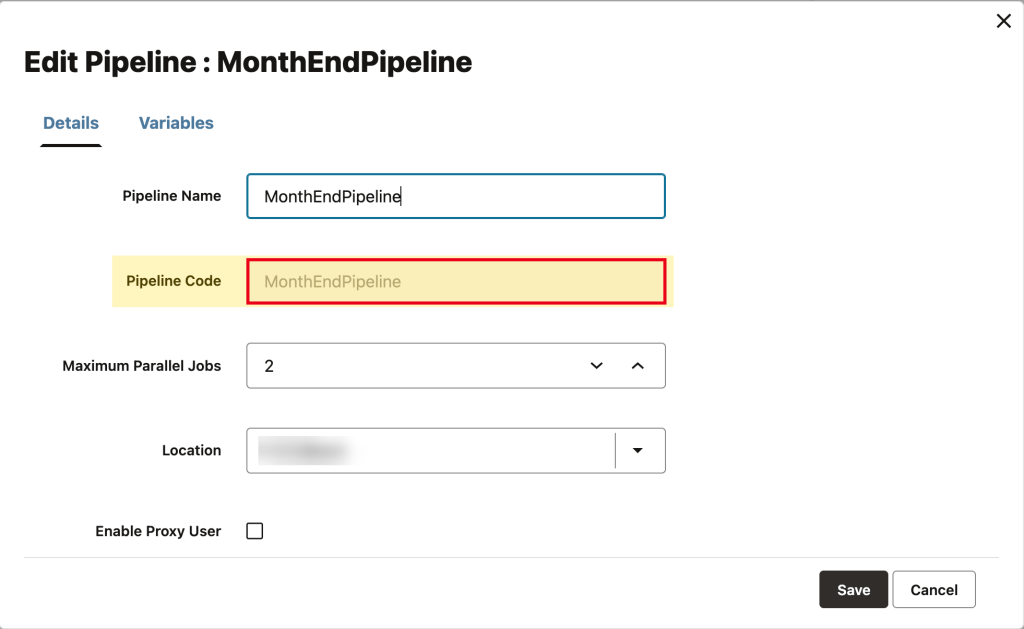
Two details will cost you time if you miss them, the first being that the parameter is called pipelineName while the value must be the pipeline code. The other is that the version in the path must be V1, and Service Administrator or Power User is enough to run it.
Pipeline Details showing the Pipeline Code
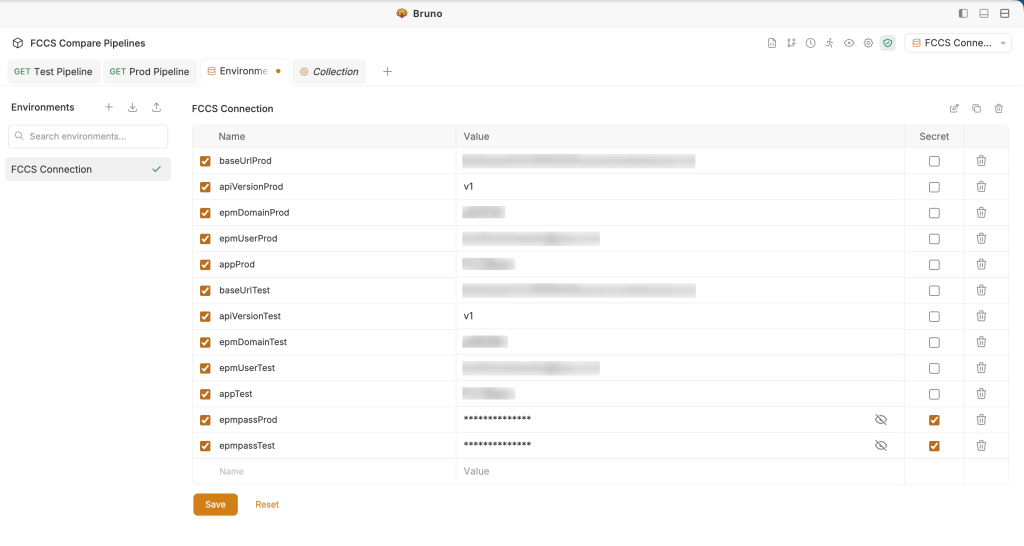
Connection details set up in Bruno (or any other tool to call the REST API)
The REST API call

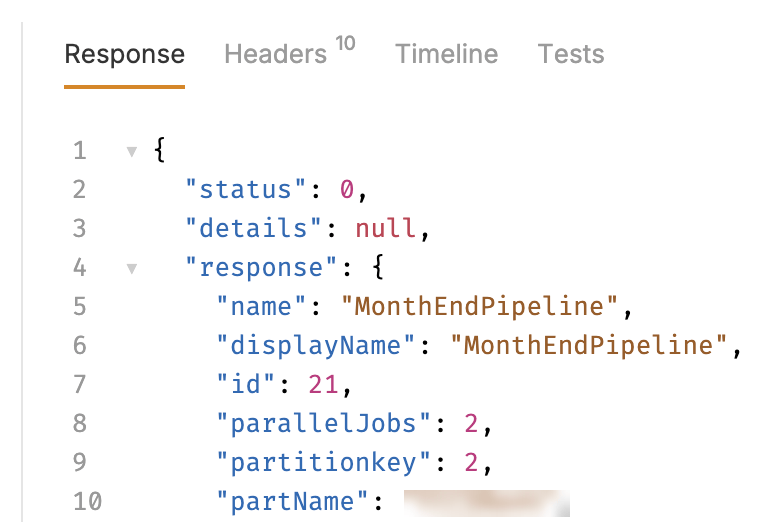
The response returned by the call
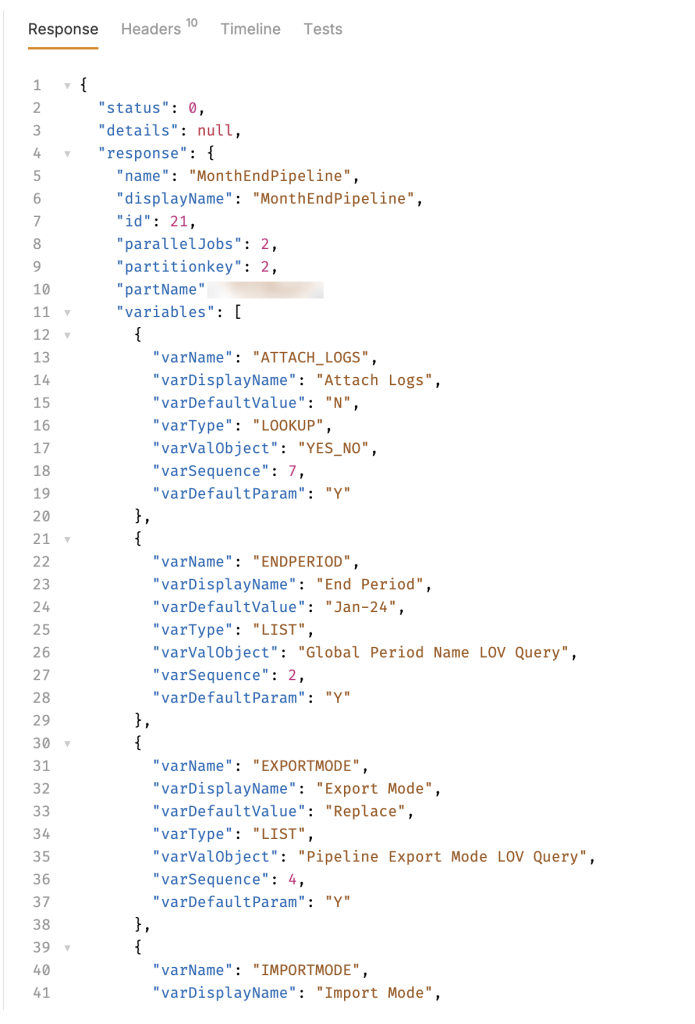
How to read the response
The system returns the whole definition in one place, covering four things the interface only shows you a screen at a time.
The pipeline itself — its name, and how many jobs the system runs at the same time
The variables — each one with its type and its default value
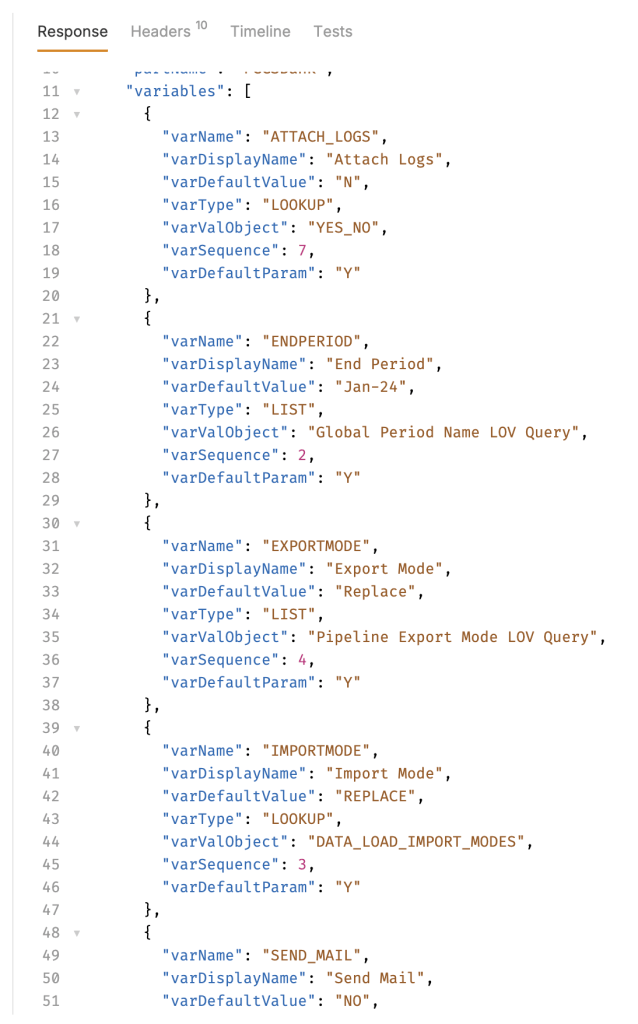
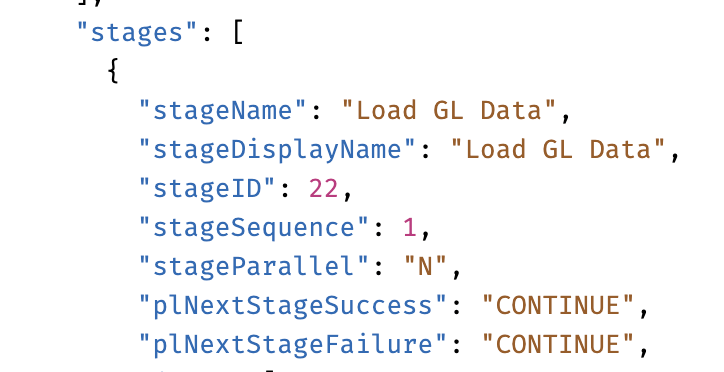
The stages — their names, the order they run in, and what happens next when a stage succeeds or fails
The jobs and their parameters — the type of each job, what it points at, and every parameter that’s been set on it
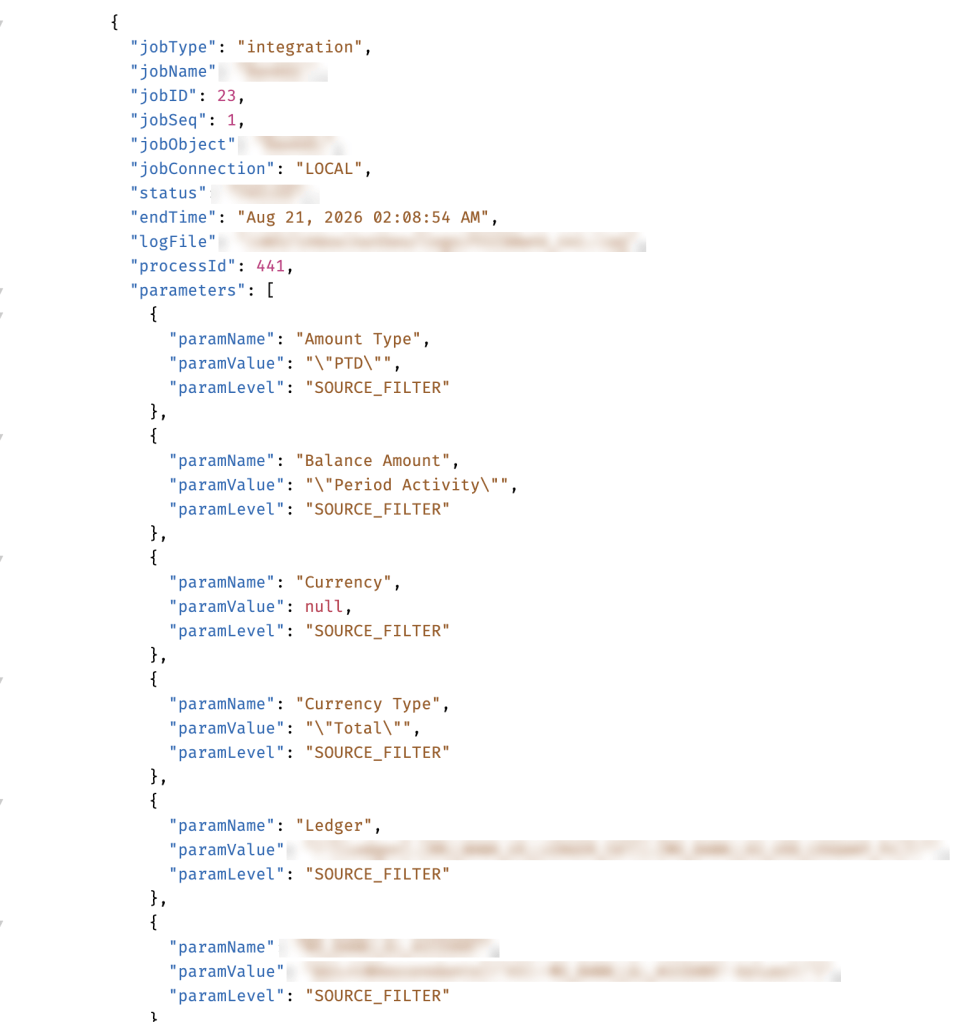
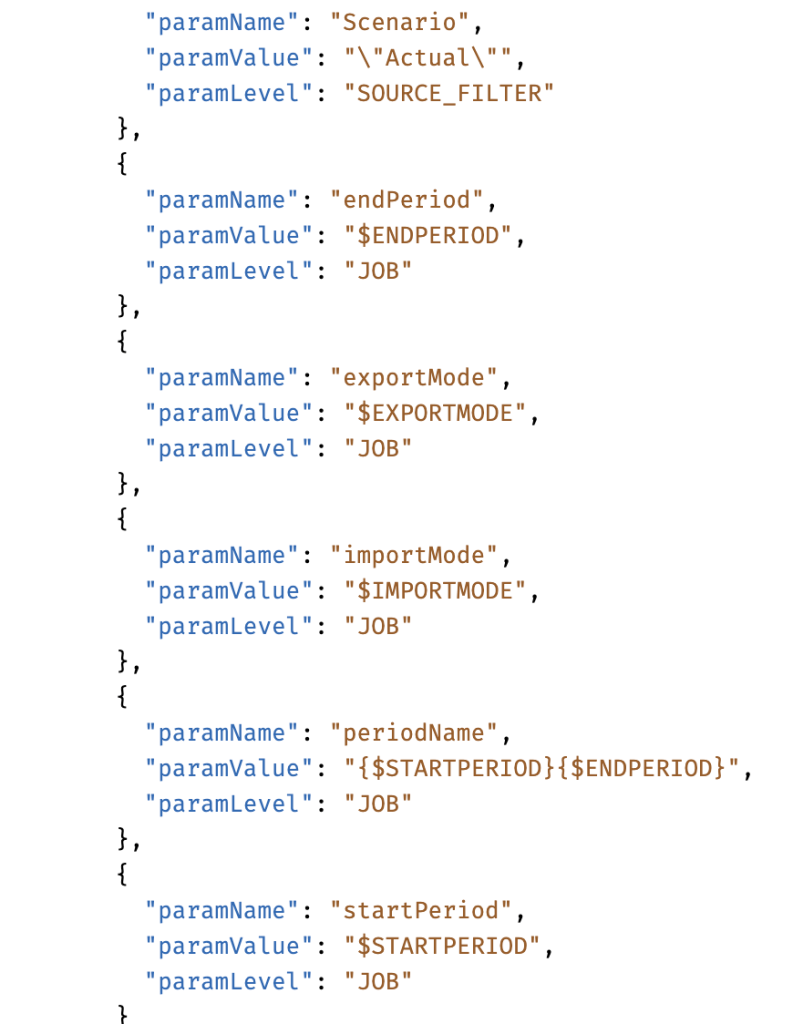
The parameters are the part worth reading closely, because a value starting with a dollar sign is a reference to a variable (so the system resolves it every time the pipeline runs) while a value in quotation marks is fixed. A parameter holding $STARTPERIOD moves with the close, while one holding a fixed period keeps pointing at the same month until somebody edits it, which is the quickest way to see which parts of a pipeline will still be correct next month.
Why there is a need to compare pipelines
When a pipeline is promoted between environments (or rebuilt from scratch in the second one), nothing in the interface confirms that the two configurations match. A stage that carries on after a failure in one environment and stops in the other, or a period left hardcoded in one and parameterised in the other, will run cleanly in both and produce different results.
For the broad question of whether two environments agree at all, EPM Automate has a snapshotCompareReport command reporting differences across every artifact (provided you’ve got the utility installed and two snapshots ready to compare). But if you need to know specifically what is inside a pipeline, then you use the REST API call above to find which stage, job or parameter is responsible for the mismatch.
How to compare pipelines
The REST API call’s response returns three kinds of information mixed together, and separating them is what makes the comparison readable:
| What it is | Examples | What to do with it |
|---|---|---|
| The configuration | Stage names and order, job types, parameter values, variable definitions | Compare these, and treat differences as findings |
| The last run, and internal numbering | Status, end time, log file, and the id numbers the system assigns | Ignore these, as they change on every run |
| Environment specifics | Connection names, file paths, and source filters naming ledgers or segments | Use judgement, as these are often different by design |
With that in mind, comparing the two responses takes three steps –
- Run the same call against both environments and save each response to a file, changing only the base URL and the credentials between the two
- Format both files before comparing them, because the response arrives as one long line and it cannot be directly used by any comparison tool
- Open them in Word, Visual Studio Code or Notepad++ or any other comparison tool to review and compare, which marks up the differences
The two responses after formatting and comparing
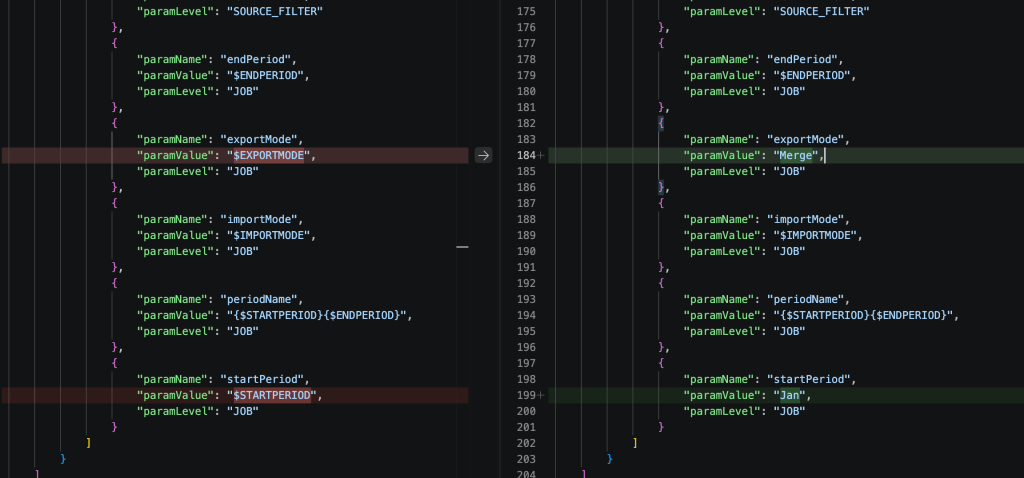
Notice here that the exportMode parameter is set to the variable EXPORTMODE in one instance but is set to Merge in the other, and the startPeriod parameter is set to the variable STARTPERIOD in one instance but is hardcoded to Jan in the other.
Conclusion
The REST API call can be used to read an entire pipeline definition – One call returns the stages, the jobs, the parameters and the variables together, which the interface only shows you a screen at a time
Reading the parameter values will show which ones survive a period change – A parameter holding a dollar sign reference resolves every run, while a fixed period or year keeps pointing at the same month until an administrator edits it
Comparing the two pipelines will provide the exact settings that differ – Running the call against both environments and formatting the responses gives you the differences (or confirmation that there are none)
That matters most when a pipeline moves between environments, when somebody hands one over to you, or when a close produces a number nobody expected and you need to know whether the configuration changed.


Leave a Reply